
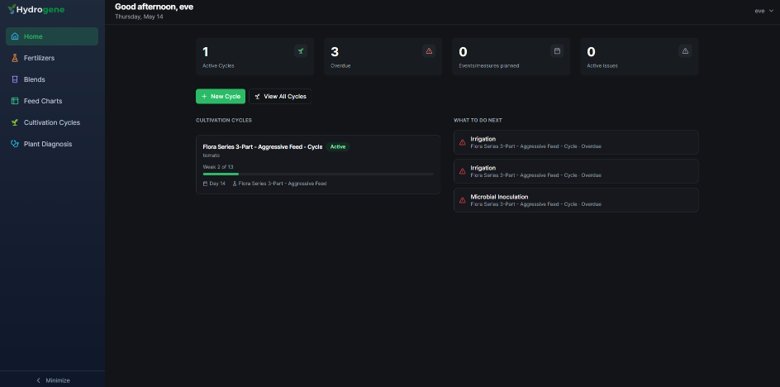
An overview of the Hydrogene Pro Home page — your central dashboard for active cycles, tasks, and quick navigation.
Home
When you log in to the web application, the Home page is displayed first. From this page, you can access the main features available in the left-hand navigation menu. If needed, you can collapse the menu by clicking the Minimize button located at the bottom of the page.
Central Summary Area
The center of the Home page provides a summary of key information, including:
| Summary Item | Description |
|---|---|
| Active Cultivation Cycles | Number of cycles currently running |
| Overdue | Tasks that have passed their scheduled date |
| Events/Measures Planned | Upcoming events and measurements scheduled in active cycles |
| Active Issues | Plant health problems still under review |
Active Cycles
The Home page also provides quick access to active cultivation cycles. To create a new cycle, click New Cycle. To view all existing cycles, click View All Cycles. Detailed instructions for creating, editing, and viewing cultivation cycles are provided in the Cultivation Cycles section of this guide.
Below these buttons, the list of active cultivation cycles is displayed. Each cycle card shows its name, current stage, and key status indicators.
What to Do Next
On the right side of the page, the What to Do Next section highlights overdue tasks that require attention. This panel is especially useful after returning from time away from the platform — it gives you an immediate view of anything that needs to be addressed.
Tips
- Keep the sidebar visible on larger screens for faster navigation between sections.
- Check the Active Issues count daily — unresolved plant health problems can escalate quickly.
- Use What to Do Next as your daily starting point to stay on top of your cycles.
Related
- Cultivation Cycles — Manage and monitor your active grows.