
Browse, add, and manage fertilizer profiles in Hydrogene Pro — including commercial products and custom formulations.
Fertilizer Library
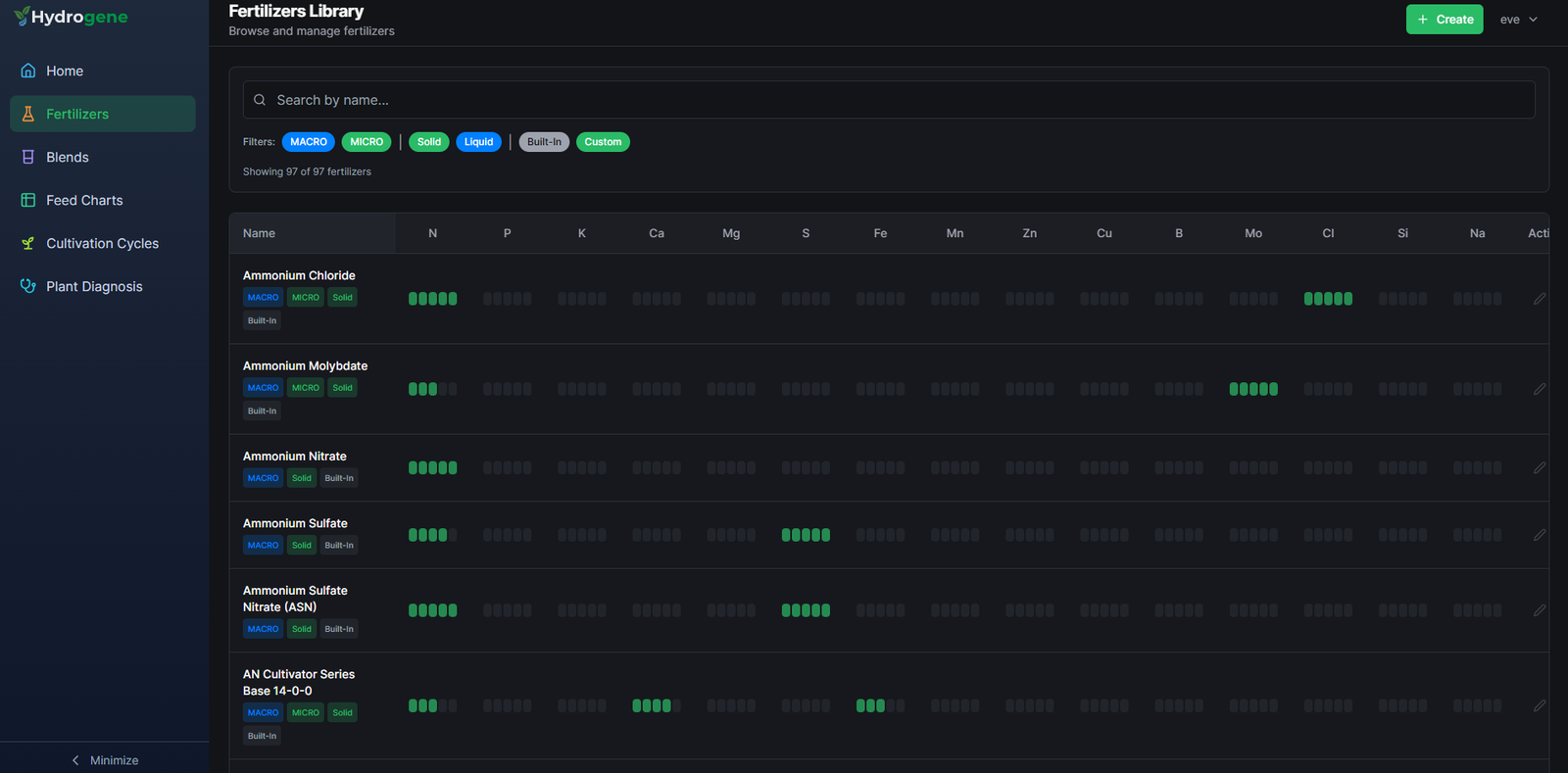
The Fertilizer Library is your central repository for all fertilizer profiles. It includes a built-in collection of commercial products and raw salts, and lets you add custom fertilizers based on products available in your region or formulations you already use.
Fertilizers saved in the Library can be used in Blends and Feed Charts.
Overview
The Fertilizer Library provides:
- A curated list of commercial fertilizers and raw salts with pre-loaded nutrient compositions.
- The ability to add custom fertilizers that are not in the built-in list.
- Filters to quickly find the right product by type, nutrient group, or origin (built-in vs. custom).
- Detail views showing the full mass composition of any fertilizer.
When to Use It
- Before creating a Blend — you need at least one fertilizer profile saved.
- When a product available in your region is not in the built-in list.
- When you want to store a custom formula you’ve been using manually.
Adding a Custom Fertilizer
If a fertilizer you use is not in the built-in library, you can add it manually.
Step 1 — General Information
- Click + Create.
- The General Information window opens. Fill in the following fields:
| Field | Description |
|---|---|
| Manufacturer | Brand or producer name |
| Price per Kg | Optional, for cost tracking |
| Physical State | Select Solid or Liquid |
| Concentration / Dilution Ratio | For solid fertilizers: grams of fertilizer per liter of concentrate solution |
| Density (g/mL) | Optional — enter if listed in the product’s technical data sheet |
| Solubility (g/L) | Optional — enter if listed in the product’s technical data sheet |
- Click Next.
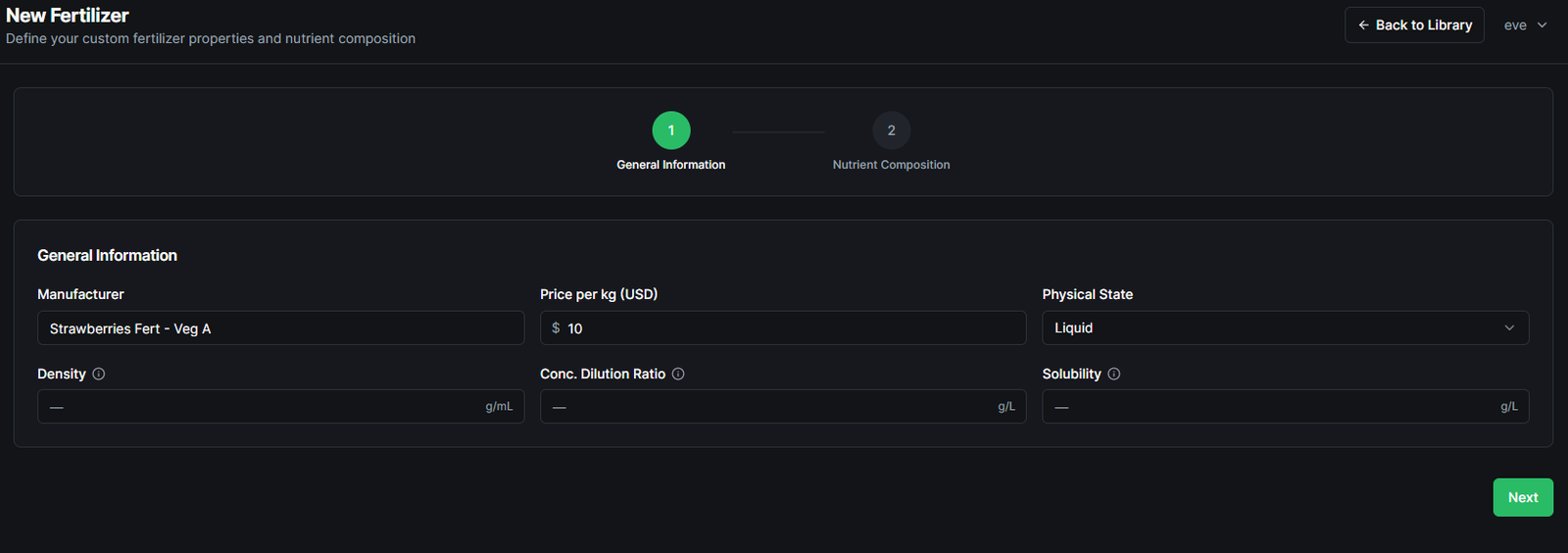
:::tip Density and Solubility are optional fields. Fill them in whenever they are available on the product label or data sheet — this improves calculation accuracy in Blends. If these values are not listed on the product, you can leave them blank.
:::
Step 2 — Nutrient Composition
The Nutrient Composition page appears next. Enter the percentage of each nutrient present in the fertilizer.
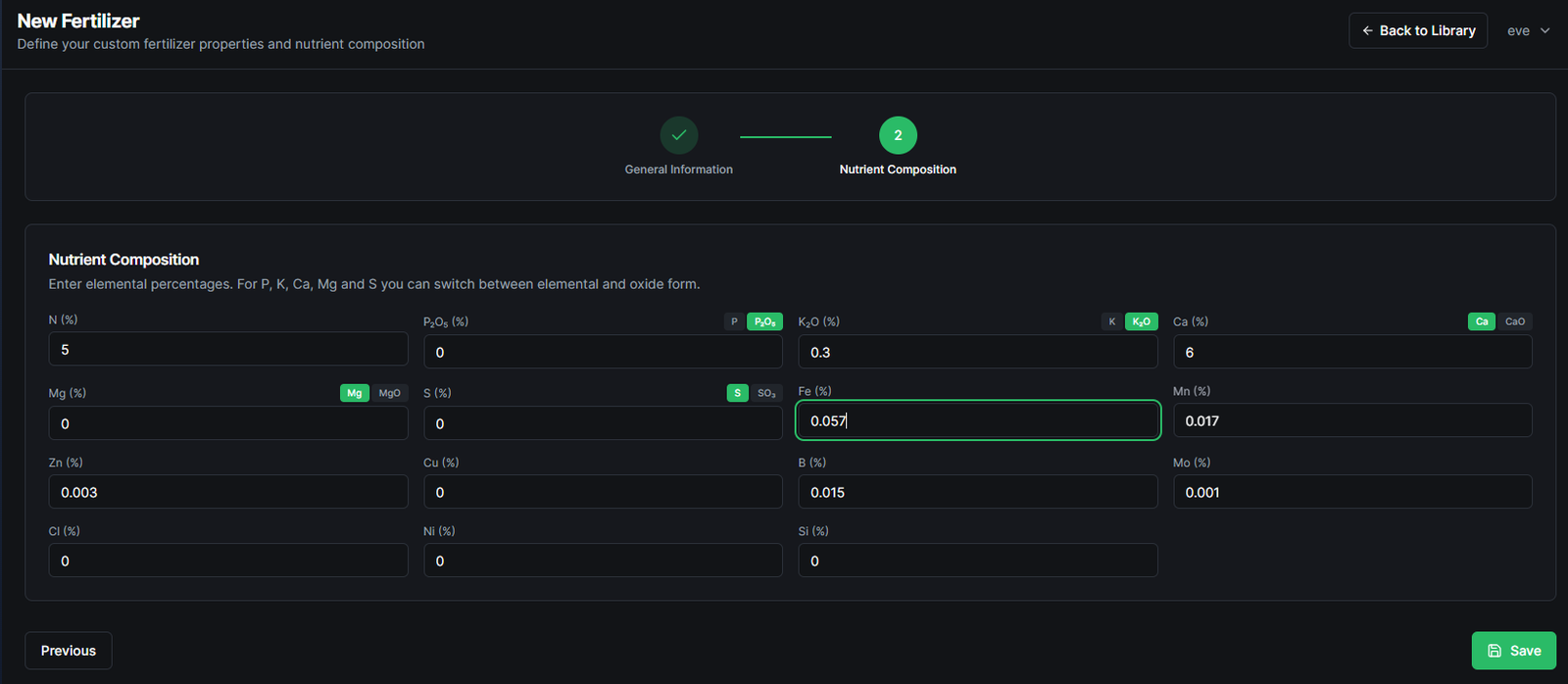
:::important Check the product label carefully. Some fertilizers list nutrients as oxides (e.g., MgO, P₂O₅, K₂O) rather than in their elemental form (e.g., Mg, P, K). Select the correct format in the form — this affects how calculations are performed.
:::
Step 3 — Name and Notes
After clicking Save, a window appears where you can:
- Enter the name for this fertilizer.
- Add optional notes (e.g., source, application notes, expiry info).
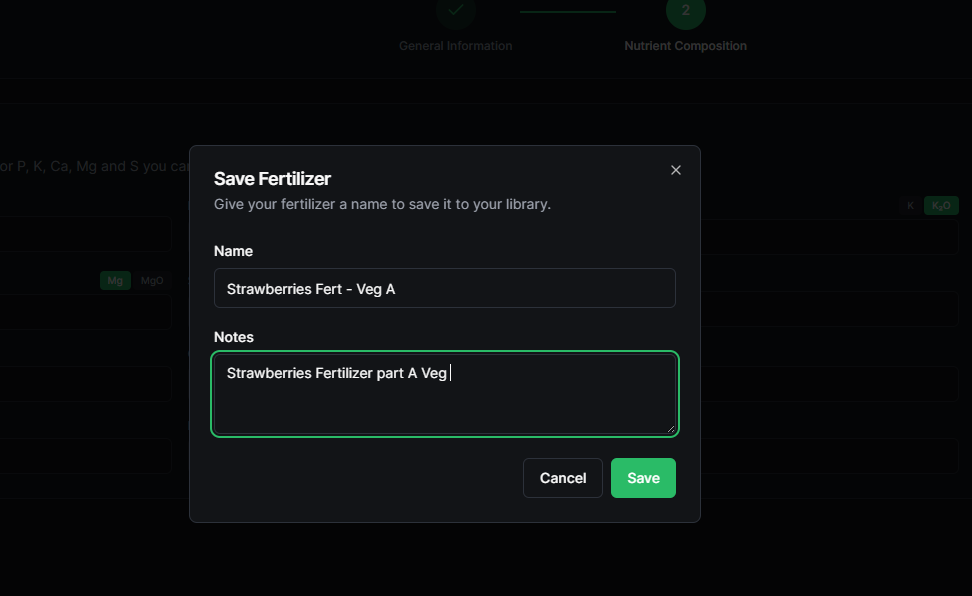
Once saved, the fertilizer is added to the Library and can be found by searching its name or filtering by Custom.
Viewing Fertilizer Details
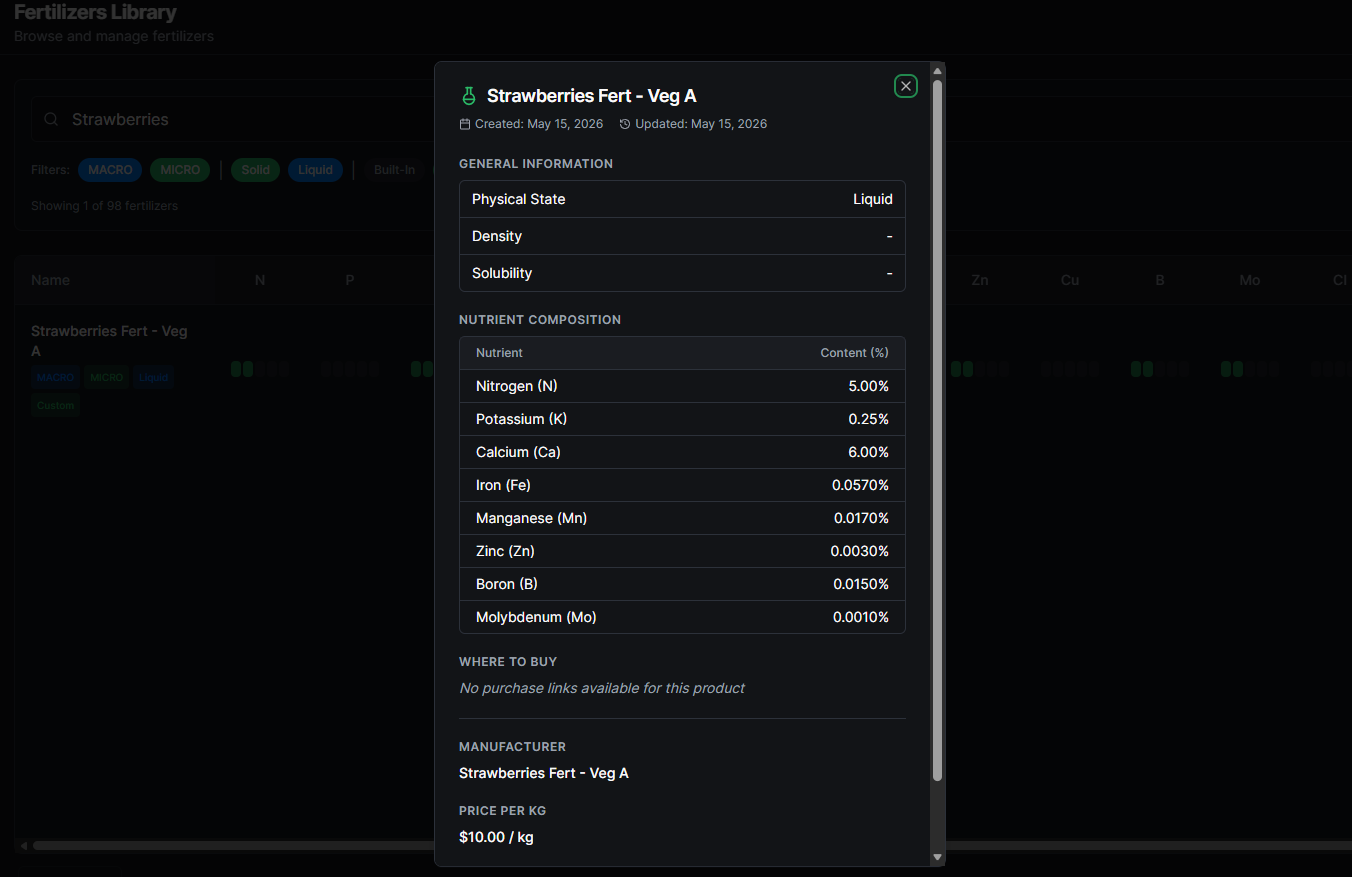
Click any fertilizer in the list to open its detail view. This shows the full nutrient mass composition of the product.
From the detail view, you can:
- Click Edit to update any field.
- Click Delete to remove the fertilizer from the Library.
:::caution Deleting a fertilizer that is used in an existing Blend or Feed Chart may affect those records. Review dependencies before deleting.
:::
Filters
Use the filter panel to narrow down the Library list:
| Filter | Description |
|---|---|
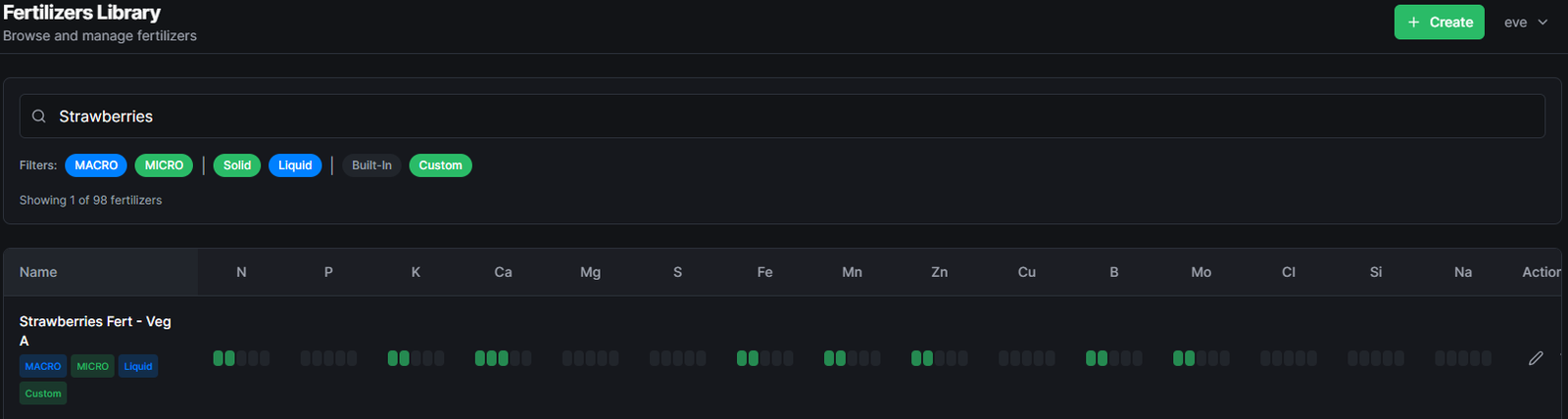
| MACRO | Show fertilizers with macronutrients (N, P, K, Ca, Mg, S) |
| MICRO | Show fertilizers with micronutrients (Fe, Mn, Zn, B, Cu, Mo) |
| Solid | Show solid fertilizers only |
| Liquid | Show liquid fertilizers only |
| Built-in | Show the default Library entries |
| Custom | Show only fertilizers you’ve added |
Filters can be combined. For example, select MACRO + Solid to see only solid macronutrient sources. Selected filters remain active until they are clicked again. Click an active filter to deactivate it.
Tips and Best Practices
- Match the label format exactly. If your product lists phosphorus as P₂O₅, select the oxide option. Using the wrong format will produce incorrect blend calculations.
- Use the Notes field. Store batch numbers, purchase dates, or supplier details for traceability.
- Don’t duplicate built-in products. Before adding a custom fertilizer, search the built-in list — the product may already be there under a slightly different name.
Related Features
- Blends — Combine fertilizers into nutrient solutions.
- Feed Charts — Use fertilizers directly in feeding schedules.
- Recreate a Commercial Fertilizer — Step-by-step workflow for replicating a commercial product using raw salts.